Install
Download the zip from the latest release, unpack it into any folder, and start
TKModManager.exe. It is portable — nothing is installed and
nothing is written to the registry. Updates install in place from the same zip.
Your settings, profiles, notes, Workshop cache and downloaded DLLs live in
%APPDATA%\TKModManager, so they survive an update or a move.
.exe in the release and will report that
there is no update. Download TKModManager-x64.zip once by hand and
unpack it; everything in %APPDATA%\TKModManager is kept.
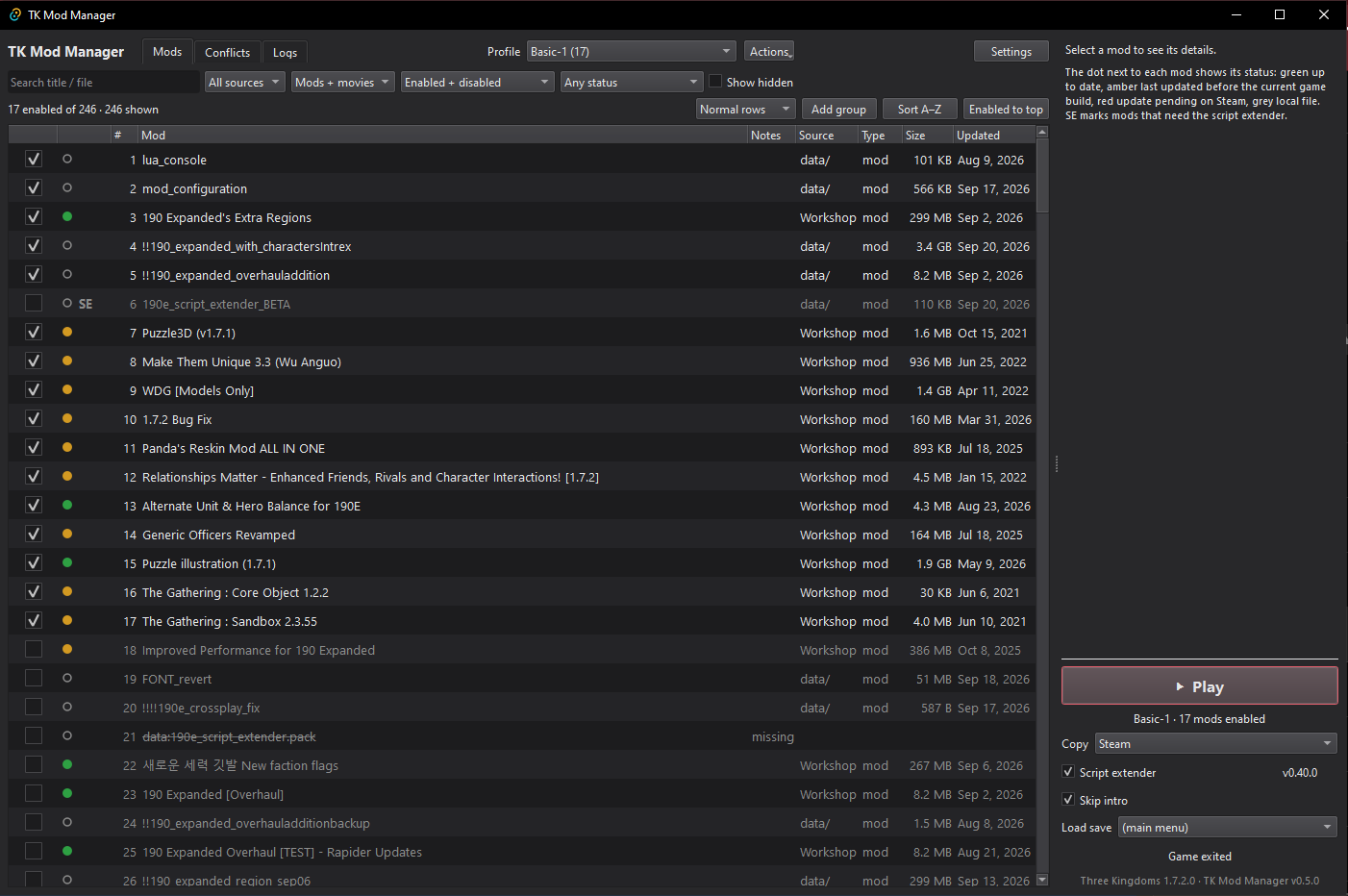
The mod list
Every pack the manager can see, in the order the game will load it. Mods lower in the list win: the precedence model is vanilla < mod packs in list order < movie packs, and the last pack to provide a file is the one that takes effect.
Drag rows to reorder. Double-click a row to enable or disable it. Use Add group to make a folding tree row — ticking the group header turns every mod in it on or off, and dragging the group moves all of them together. Row height is Compact, Normal or Large.
Status dots
You can filter and sort by status, source, type and text, and the details pane on the right explains whatever state the selected mod is in. The cut-off date for "older than the game patch" defaults to the game executable's build date and can be changed in Settings.
How it launches the game
The manager writes tkmm_mods.txt into the game folder and starts
Three_Kingdoms.exe directly with that file, rather than going through
the CA launcher. That is what gives it real control over load order.
- Workshop packs load from wherever Steam already put them, via
add_working_directory. Nothing is copied intodata/. - Movie-type packs in
data/that you turn off are excluded withexclude_pack_file. - Files are never renamed or moved. Turning a mod off in the manager does not touch it on disk.
Steam, Epic and Game Pass
The manager finds every copy of the game on the PC — Steam libraries, the
Epic launcher's installs and XboxGames — and you pick which one
to manage with the Copy box next to Play. Each copy keeps its own
profiles, so Steam Workshop packs do not show up as "missing" under Epic. Packs in
the game's own mods\ folder, where the Epic and Game Pass builds keep
them, are listed as mods/.
user.script.txt, which the game reads on every start: the manager
opens Epic, you press Play in CA's launcher, and injection happens as usual. The
file is removed when the game exits, or if the app was closed mid-launch. If CA's
launcher has mods of its own ticked, the manager says so before launching. The
Epic build ignores a save passed on the command line, so Load save is
refused there.
Steam must be running to launch a Steam copy and for the Workshop features.
Script extender
Tick Script extender in the launch panel. After the game reaches the main menu the DLL is injected once; the DLL verifies the game build itself and the launch panel shows the result. A DLL built for another game build is never injected.
All versions… lists every published script-extender release with
its date and the game build it was made for. Installing an older one
pins it, so that version is injected instead of the newest match until
you choose Always use newest. A single DLL release can cover
several game builds through a builds list in its
manifest.json.
Before launch, the panel lists any enabled mod whose script-extender need is unmet — extender turned off, no DLL for this game build, or an installed DLL outside the mod's version range — each with a one-click fix.
See the script extender page for what the DLL actually does, and the API reference for scripting it.
Declaring that your mod needs the script extender
Ship this file inside your pack:
SE/script_extender.jsonIts contents look like this:
{
    "author": "Ironic",
    "minimum_version": 0.28,
    "maximum_version": 0.28,
    "notes": ""
}
A pack needs the script extender exactly when it contains this file — there is no heuristic and no per-mod override.
- Every field is optional, and a trailing comma is tolerated.
- Versions may be numbers or strings, such as
"0.28.1". - They compare as dotted versions, so
0.30is newer than0.28— and a maximum of0.28allows every 0.28.x release. - The manager warns before launch when the installed DLL falls outside the range, in either direction.
authorandnotesare shown in the details pane.
The game never loads the SE/ folder, so the file is harmless to ship.
Conflicts and Logs
The Conflicts tab lists every file path provided by more than one enabled pack, together with the packs that contain it in precedence order, and a per-pack count of how many collisions it takes part in. Pack indexes are read lazily (header and index only) and cached, so a rescan on a large setup is cheap.
The Logs tab collects the logs a run produces — the script
extender's own log, plus the game-root logs that mods write
(lua_mod_log.txt, the newest script_log_*.txt and
ironic_log_*.txt) — so you can read them without hunting
through folders. Reading is restricted to files under the game root or the
manager's DLL folder.
Updates
On startup the app checks for both app and script-extender updates and asks before installing anything, with Install, Skip this version and Not now. A skipped version is never offered again. Nothing downloads or installs without your say-so.
Pre-releases are only offered when Settings → Behaviour → Include pre-releases is ticked; the stable channel stays on full releases.
Building from source
The workspace has two crates. crates/core
(tkmm_core) is everything except the window — pack scanning,
profiles, groups, launch and injection, Workshop, updates — with no GUI and
no Qt needed; CI runs its tests. crates/app (tkmm) is
the Qt Widgets UI.
cargo test -p tkmm_core                                                        # core tests
powershell -ExecutionPolicy Bypass -File scripts\build.ps1 [-Release] [-Run]   # the app
powershell -ExecutionPolicy Bypass -File scripts\release.ps1 [-Publish]        # release zip
The UI builds against Qt 6 (MSVC) from
KDE Craft
in C:\CraftRoot and the ritual-generated Qt bindings from an RPFM
checkout — the same setup RPFM uses — so it builds on a prepared
Windows PC only. To run a dev build, put C:\CraftRoot\bin on
PATH and set QT_PLUGIN_PATH=C:\CraftRoot\plugins.
License
MIT. You are free to use, modify and redistribute it, including commercially, as long as the copyright notice and licence text come along.
Something went wrong
Ask in the 190 Expanded Discord, or open an issue on GitHub. The Logs tab is the fastest way to find out what the game and the script extender thought was happening.